
Use Settings to set up and adjust language, date/time formats, print format, Auto Test functionality, administrative shop settings, and network connectivity.
Press

to return to the previous screen, select options, and when necessary, press

to enter or continue to the next step.
Tool Settings
Display
Use  to return to the Display menu.
| Language | Select the analyzer default standard language |
| Temperature Units | Select the default temperature units (Fahrenheit/Celsius) used when measuring battery temperature |
| Number Separator | Select the default number display using comma or period separators |
Date & Time
Use to return to the Display menu.
Date Format
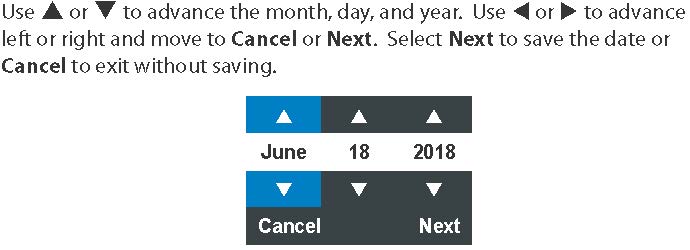
Select Month/Day/Year (MM/DD/YYYY), or Day/Month/Year (DD/MM/YYYY).
Date
Time Format
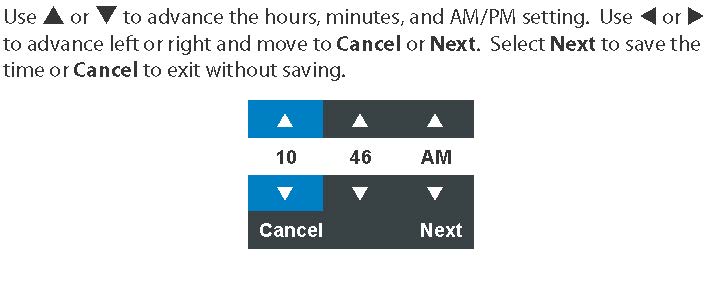
Select 12 or 24 Hour Format.
Time
Print Format
Set the default to include Shop Info and State of Health (SoH) information on test result printouts.
Use to return to the Display menu.
Include Shop Info
Press to check and uncheck the box. A checked box indicates the shop information will be included on printout test results.
Include SoH Graph
Press to check and uncheck the box. A checked box indicates the State of Health graph will be included on printed test results.
Work Order
Press to check/uncheck the box to enable/disable the function.
Customize Enable
Press to check/uncheck the box to enable/disable the ability to customize Work Order text.
Work Order Text
Use
to return to the previous screen, select options, and when necessary, press
to select. Limit = 13 characters. Select Esc to return to the Work Order Settings screen.
Auto Test
Press to check/uncheck the box. A checked box indicates the tester will immediately begin testing a battery as soon as it is connected.
Use to return to the Tool menu.
NOTE: To expedite the testing procedure, make sure the Auto Test function is enabled.
Version
Use to confirm technical information for internal tester software and hardware.
| Config: | Build Number: |
| Firmware: | Serial Number: |
| Flash: | MAC ID: |
| EEPROM: | FCC ID: |
| Build Date |
Shop Settings
Admin
Admin Enable
Press to check/uncheck the box. A checked box indicates the Admin function is enabled.
Admin PIN
Use
to select a 4-digit Admin PIN. Select OK to save the PIN or Cancel to exist without saving.
Use to return to the Shop Settings menu.
Shop Info
Enter the information where the tester will be used.
| Shop Name | Phone Number |
| Shop Address | Email Address |
| Shop Address 2 | Website |
| City | (Blank) |
| State | (Blank) |
| Zipcode | (Blank) |
| Country |
1. Use
 to delete the placeholder text.
2. With the displayed alphanumeric keypad, use
to highlight the desired alphanumeric character.
3. Select
 to access the lower case and symbol character maps.
4. Once all of the alphanumeric characters have been entered, select Save or Esc to exit without saving.
Users
The Users function is for enabling, adding, and editing IDs for tester users. It also allows you to delete a USER ID and its associated test totals.
Enable Users
Press to check/uncheck the box. A checked box indicates the Enable Users function is enabled.
Add User
1. With the displayed alphanumeric keypad, use
to highlight the desired alphanumeric character. (You can add up to 10 new users at a time)
2. Press to select that character.
- Select
to access the lower case and symbol character maps
- Select ?123 to access alternate characters
Once all of the alphanumeric characters have been entered, select Save or Esc to exit without saving.
Edit User
1. Use

to select a user to edit.
2. Use
to highlight the desired alphanumeric character
3. Press to select that character.
- Select
to access the lower case and symbol character maps
- Select ?123 to access alternate characters
Once all of the alphanumeric characters have been entered, select Save or Esc to exit without saving.
Delete User
1. Use
to select a user to delete.
2. Press
3. A tone sounds and a confirmation screen is displayed. Select Delete to delete the user or Cancel to exit and go back one screen.
Network Settings
WiFi
Automatic
The tester searches for any detectable WiFi networks. A list of detected WiFi networks is then displayed on the tester screen. Highlight a displayed network and press
to connect.
Press to return to the WiFi Settings screen.
Manual
Manually enter Security, SSID, and Password. Select Connect.
BMIS Settings
Use the BMIS Settings function to manage administrator User credentials and edit the Dealer Code numbers.
User Credentials
Username: Administrator’s Username
Password: Administrators Password
Press to edit
Dealer Code
Press to edit